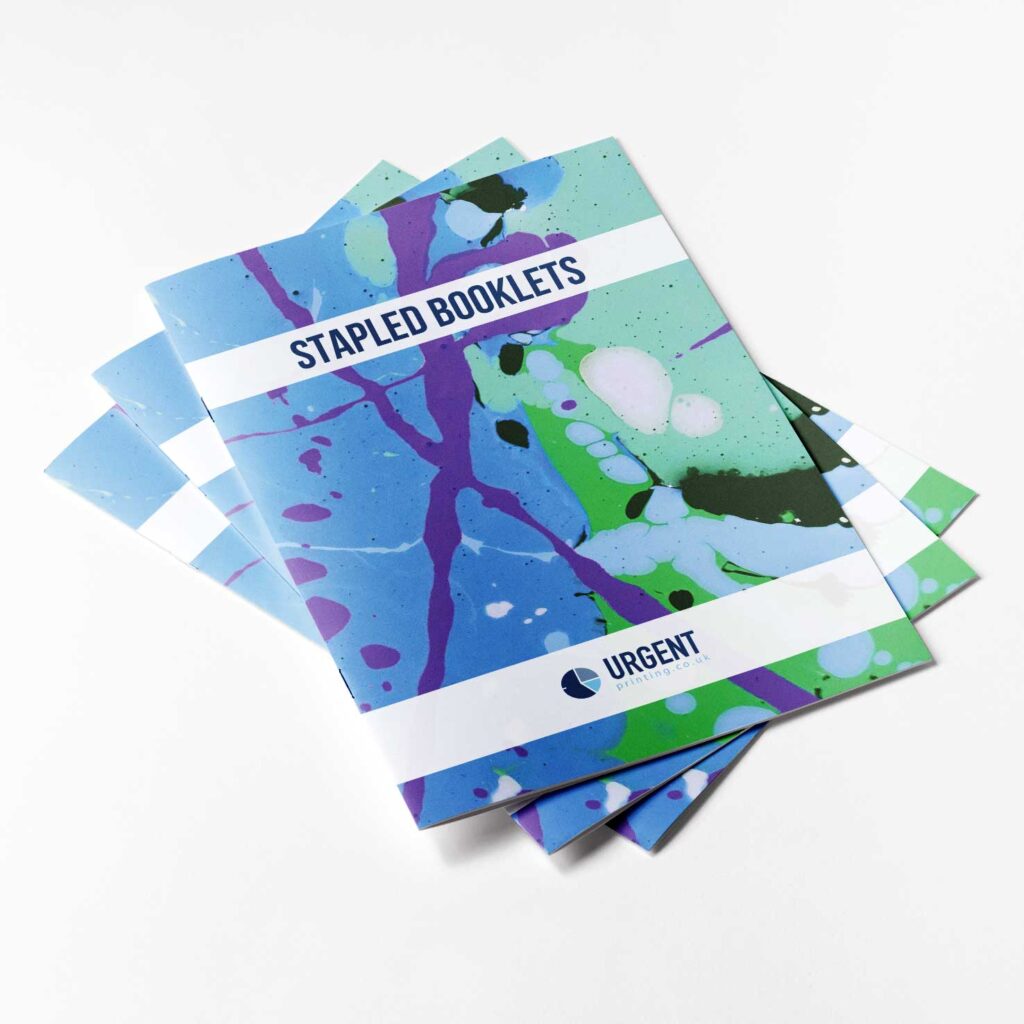
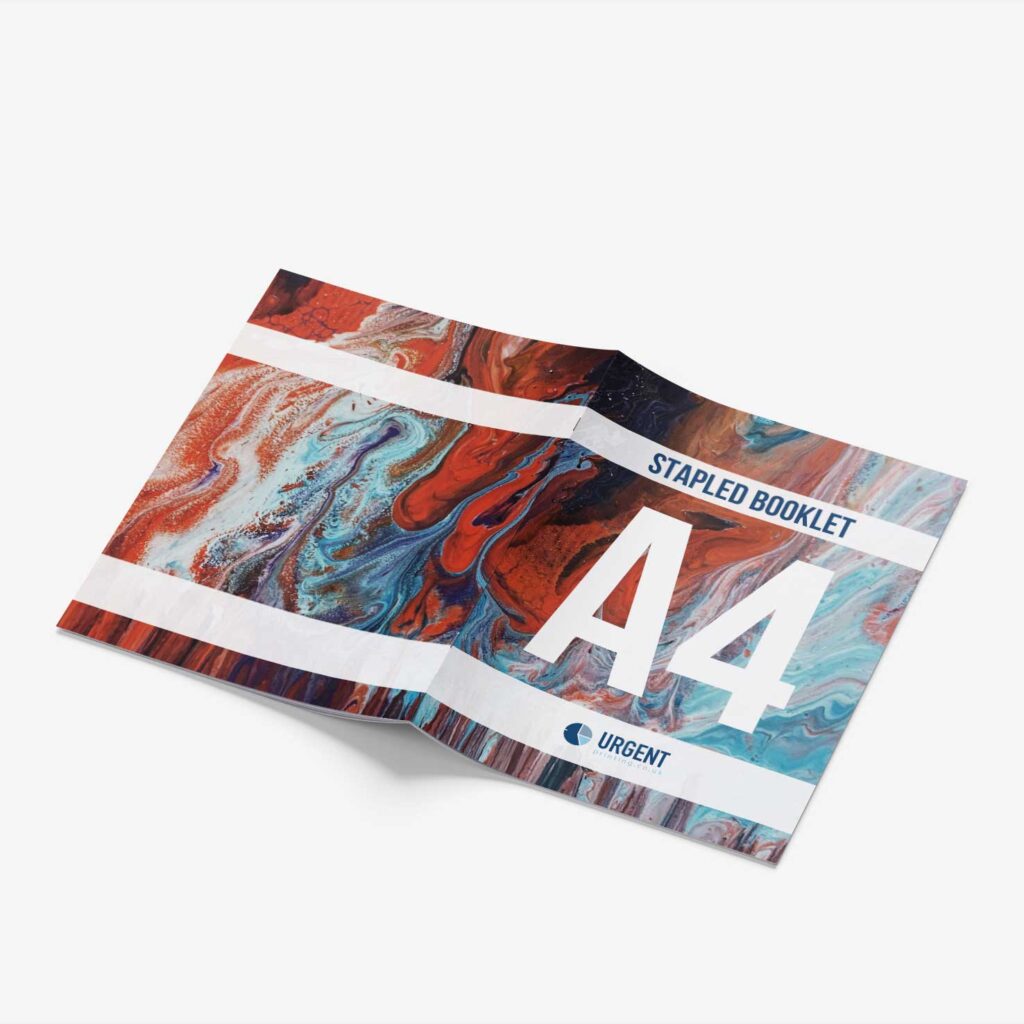
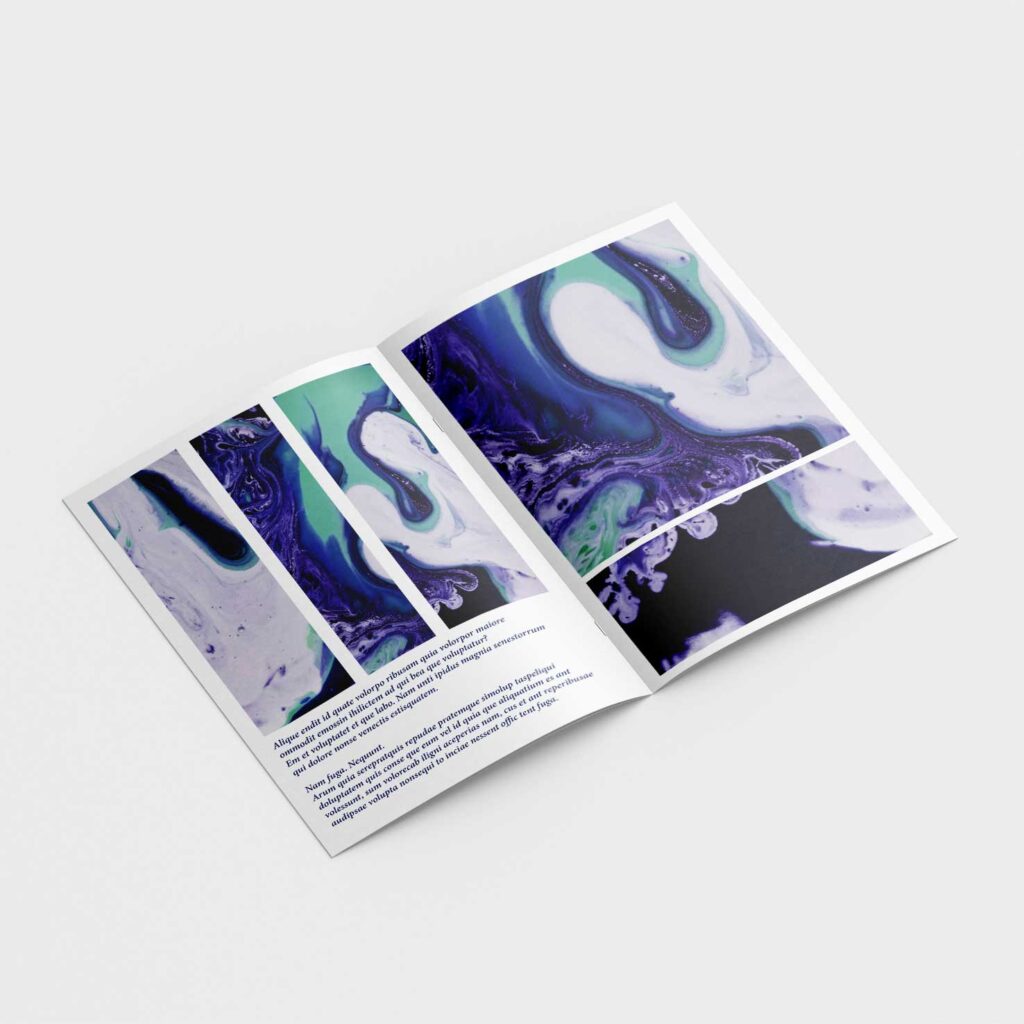
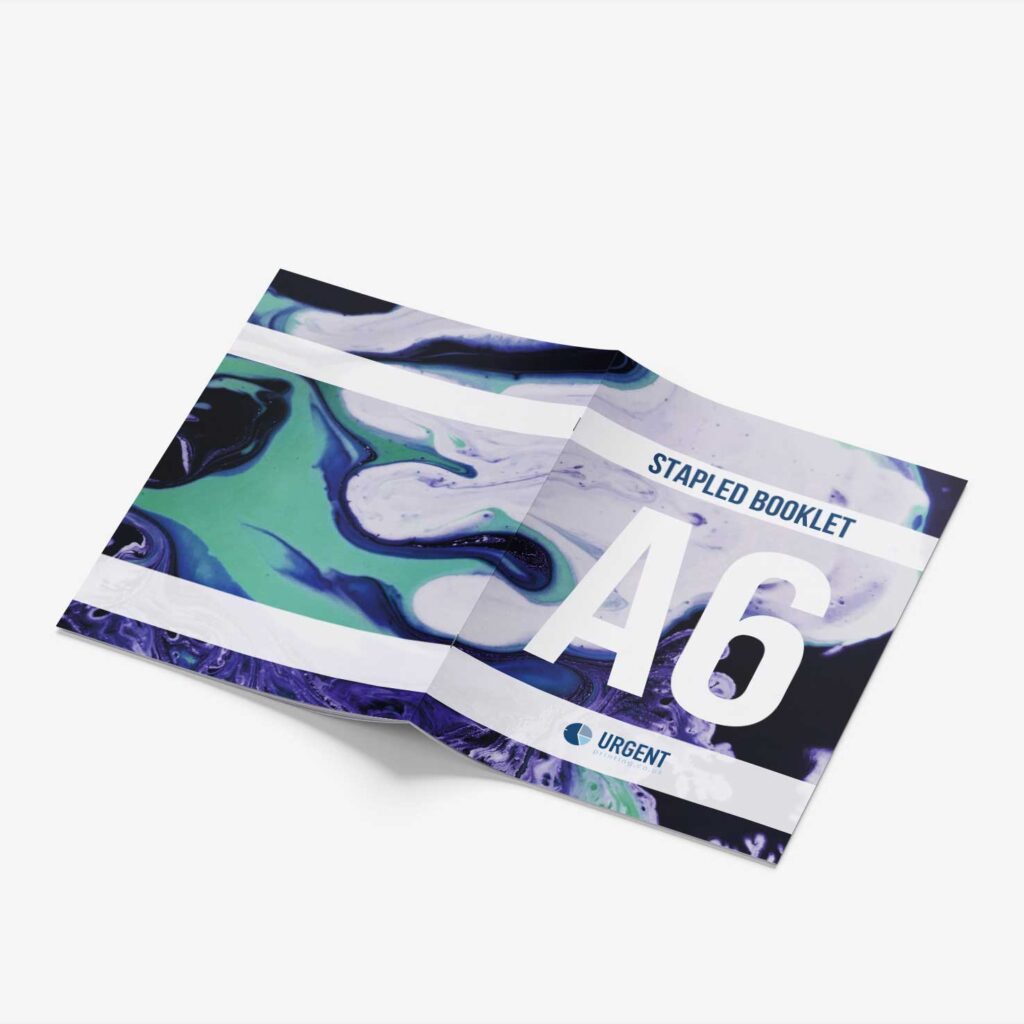
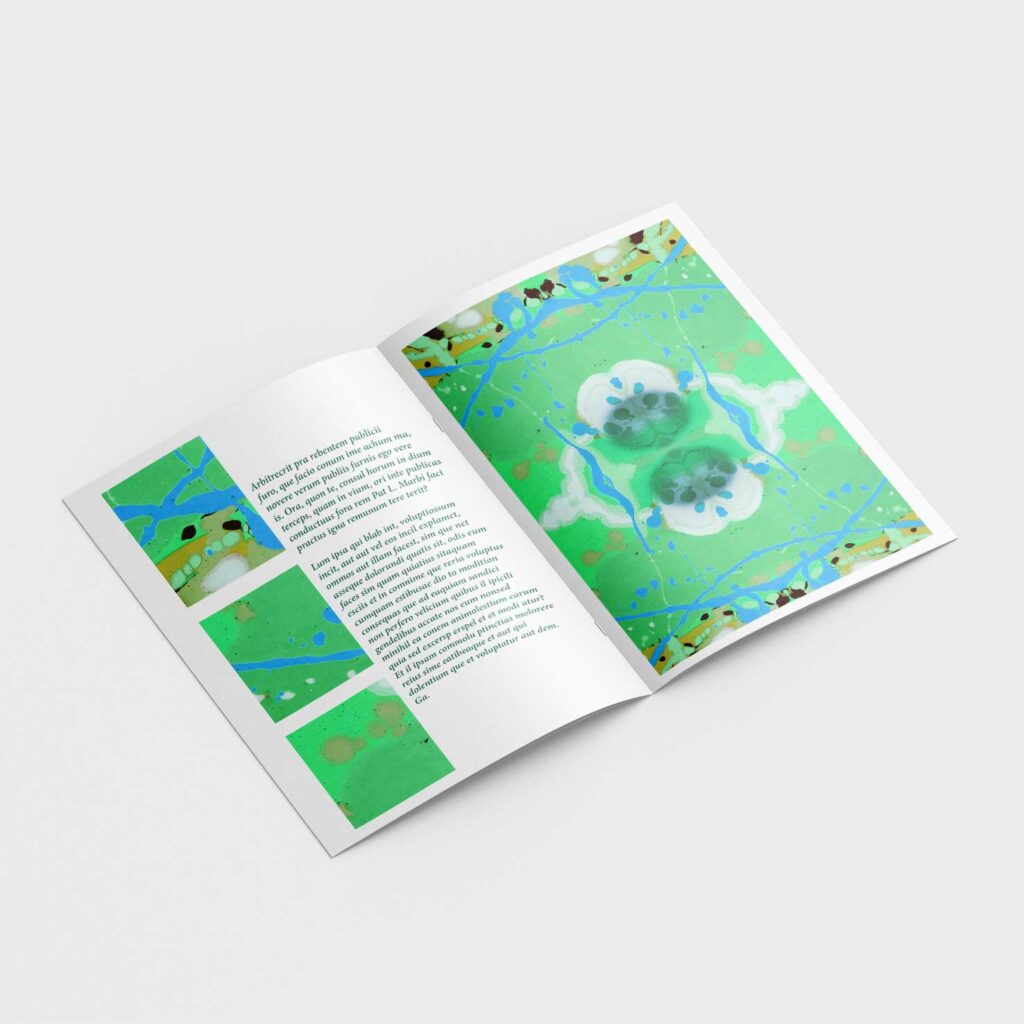
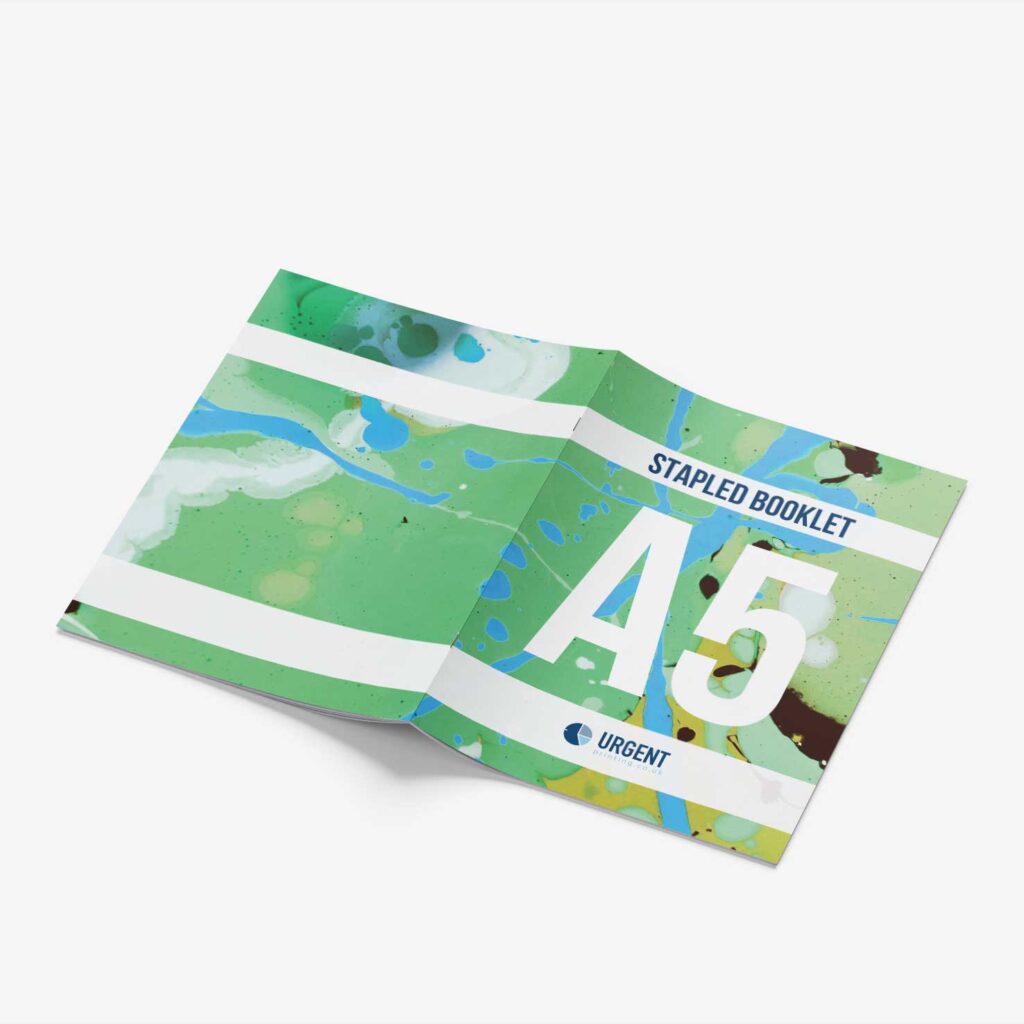
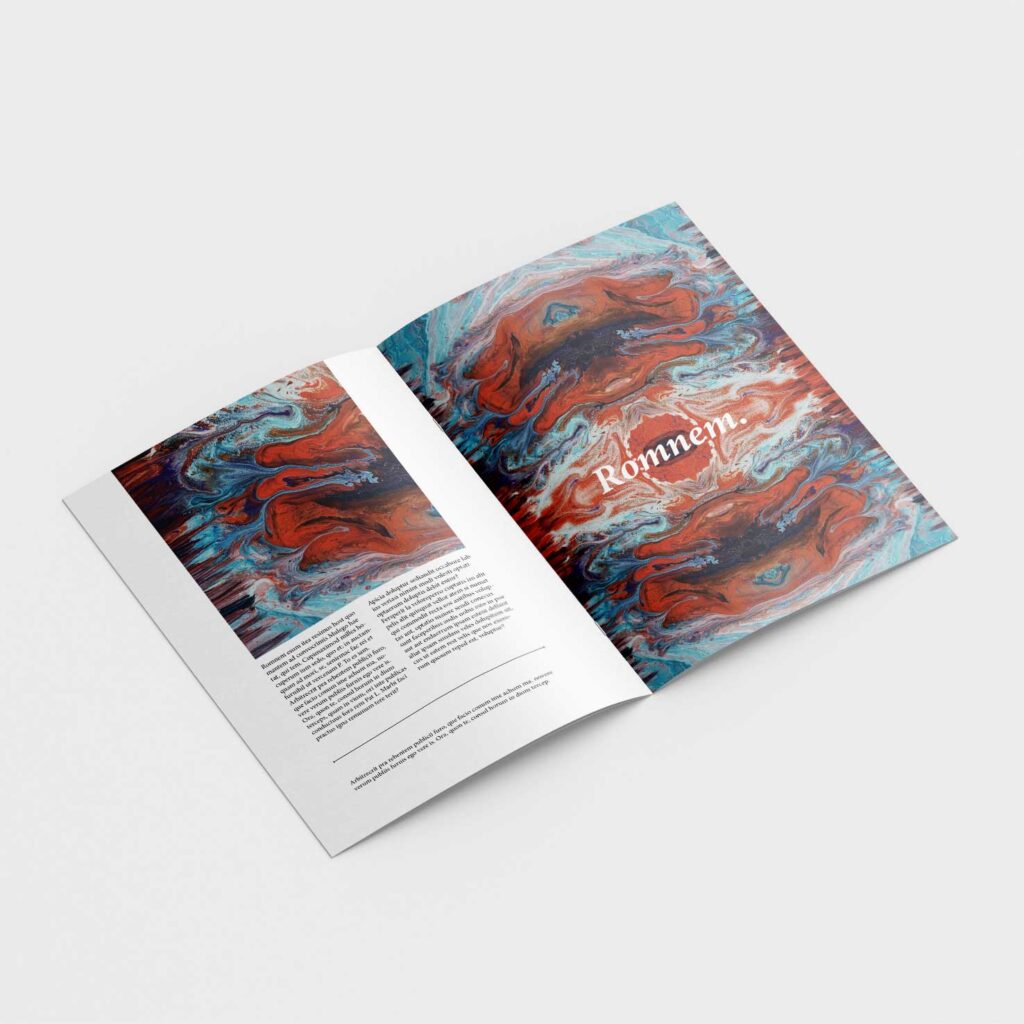
Stapled (saddle-stitched) booklets are a sleek, cost-effective way to present high-quality, professionally bound content with a polished finish. Whether you’re crafting an event program, product catalog, training manual, or corporate brochure, these booklets deliver crisp, secure binding and a lay-flat design, ensuring easy readability and lasting durability. Why choose stapled booklets?
- Polished presentation – ideal for showcasing professional content with clean, sharp pages.
- Lightweight yet sturdy – easy to handle, distribute, and perfect for everyday use.
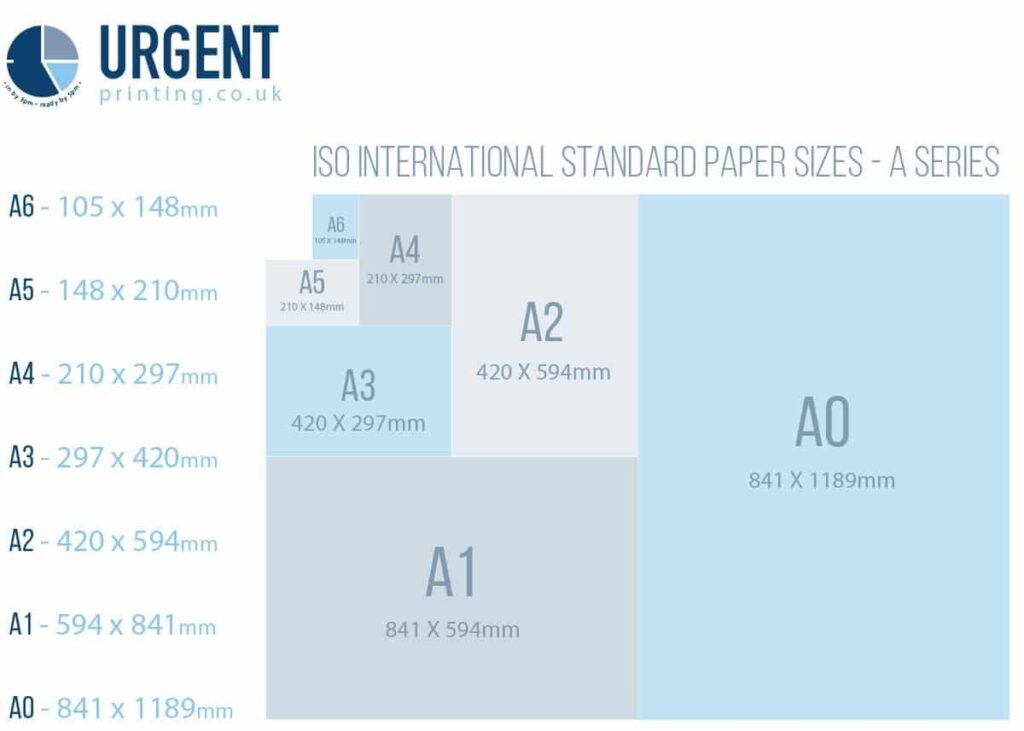
- Flexible sizing – compact A6, standard A5, or full A4, tailored to suit your needs.
- Cost-effective impact – high-quality appeal without a hefty price tag.
Our stapled booklets are ideal for a number of use cases such as:
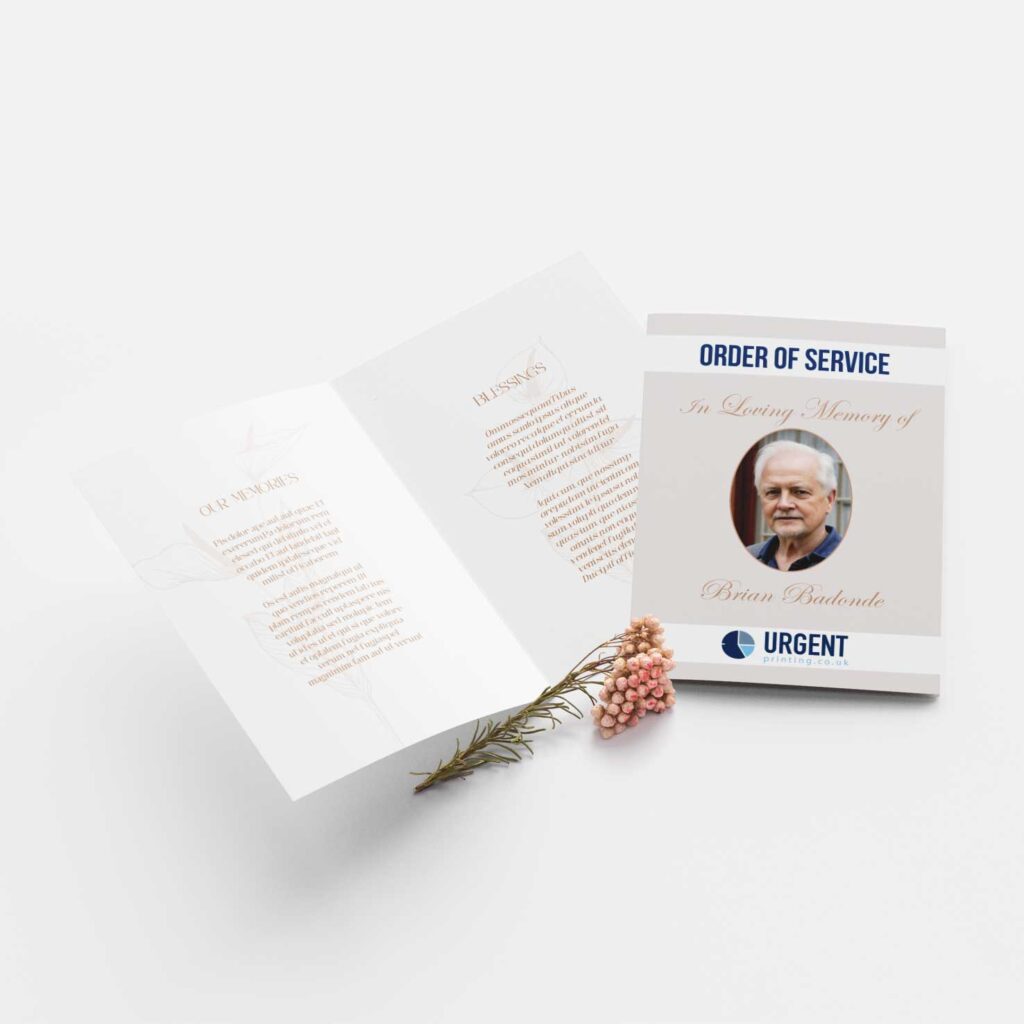
- Event programs & orders of service – stylish, structured, easy to follow.
- Product catalogs – premium look, clear details, seamless browsing.
- Corporate brochures & reports – polished presentation for professionals.
- Training manuals & guides – structured layouts for effortless learning.
- Menus & price lists – sleek, practical, customer-friendly.
Some important information when setting up your booklet:
- Saddle-stitched booklets must have a page count divisible by 4 to ensure proper binding.
- PDFs must be supplied as single pages, not spreads, to ensure accurate printing and layout. Spreads combine two pages into one file, which can disrupt alignment.
- Please include a 3mm bleed on all sides; need help on setting this up? Please see our quick guide below:
Adding bleed to your file Adding bleed ensures your design extends beyond the trim edge, preventing white borders after cutting. Here’s how to set it up:
- Photoshop: Add 3mm (0.125 inches) to each side when creating a document. Use rulers to set guides at the trim size and extend the design beyond them. Save as a PDF, ensuring bleed is included.
- InDesign: In the New Document window, enter 3mm (0.125 inches) in the Bleed section. When exporting as PDF, check Use Document Bleed Settings.
- Illustrator: In File > Document Setup, set 3mm (0.125 inches) bleed. When saving as a PDF, ensure bleed is included under Marks and Bleeds.
- Canva: Canva adds bleed automatically. To view it, go to File > View settings > Show print bleed. When downloading, select PDF Print and check Crop marks and bleed.
If your booklets are a bespoke size or you require more than 500 units, please contact us here with your requirements.